Background Transfers Using URLSession
Dejan Agostini
URLSession has a great feature where you can download files while your app is in the background. In this article we'll go over setting up your app to use this great little feature. We'll focus on downloading files, but you can use the same principles for uploading files as well. It's going to be a short article, and hopefully useful :)
 Let's say you're downloading a large file. Your user will tap the download button, spend a few seconds in the app, and then put the app in the background. Imagine you're downloading a few gigabytes, you can't expect your users to keep your app in focus for a few minutes (or even hours). They got better things to do :) With the background transfers, you hand over the downloading of the file to the daemon service, and your file will keep on downloading. If your app is in the foreground, you can even receive progress reports, to update the UI. When your download completes, you will get a link to the temporary file that the daemon saved on the filesystem. You can then do what ever you want with this file, move it to your documents folder, parse it... It's up to you.
This gives us a little insight into how this process actually works. It's not magic. The daemon only works with files. If you're downloading a file from a server, it's obvious. But, if you're uploading a file, you can only upload a file from the filesystem, not from memory. Because your apps' process and your daemons' process can't access each others' memory space the only way the daemon can work with your apps' data is if it's persisted on the filesystem. Your app can even be killed by the system, in which case the memory your app occupied will get purged.
If your app is in focus, a background transfer will behave exactly as any other transfer. So if you need to download some large files, you can provide your users with a seamless experience. They can keep your app in focus, see the progress bar moving, check their email, watch a movie, come back to your app...
With all that being said, if a user kills your app (the famous 'swipe up' term), all the background transfers associated with your app will get terminated.
Let's say you're downloading a large file. Your user will tap the download button, spend a few seconds in the app, and then put the app in the background. Imagine you're downloading a few gigabytes, you can't expect your users to keep your app in focus for a few minutes (or even hours). They got better things to do :) With the background transfers, you hand over the downloading of the file to the daemon service, and your file will keep on downloading. If your app is in the foreground, you can even receive progress reports, to update the UI. When your download completes, you will get a link to the temporary file that the daemon saved on the filesystem. You can then do what ever you want with this file, move it to your documents folder, parse it... It's up to you.
This gives us a little insight into how this process actually works. It's not magic. The daemon only works with files. If you're downloading a file from a server, it's obvious. But, if you're uploading a file, you can only upload a file from the filesystem, not from memory. Because your apps' process and your daemons' process can't access each others' memory space the only way the daemon can work with your apps' data is if it's persisted on the filesystem. Your app can even be killed by the system, in which case the memory your app occupied will get purged.
If your app is in focus, a background transfer will behave exactly as any other transfer. So if you need to download some large files, you can provide your users with a seamless experience. They can keep your app in focus, see the progress bar moving, check their email, watch a movie, come back to your app...
With all that being said, if a user kills your app (the famous 'swipe up' term), all the background transfers associated with your app will get terminated.
 And that's it. We can code...
A Few Words
When you create your background download or upload tasks with URLSession, you're actually scheduling a download (or upload) with the 'nsurlsessiond' which is a daemon service that runs as a separate process. Which means, even if your app gets killed by the system, the scheduled transfer task will keep on running. You can observe the daemon at work by using the 'Activity Monitor' if you're using the simulator:
Let's say you're downloading a large file. Your user will tap the download button, spend a few seconds in the app, and then put the app in the background. Imagine you're downloading a few gigabytes, you can't expect your users to keep your app in focus for a few minutes (or even hours). They got better things to do :) With the background transfers, you hand over the downloading of the file to the daemon service, and your file will keep on downloading. If your app is in the foreground, you can even receive progress reports, to update the UI. When your download completes, you will get a link to the temporary file that the daemon saved on the filesystem. You can then do what ever you want with this file, move it to your documents folder, parse it... It's up to you.
This gives us a little insight into how this process actually works. It's not magic. The daemon only works with files. If you're downloading a file from a server, it's obvious. But, if you're uploading a file, you can only upload a file from the filesystem, not from memory. Because your apps' process and your daemons' process can't access each others' memory space the only way the daemon can work with your apps' data is if it's persisted on the filesystem. Your app can even be killed by the system, in which case the memory your app occupied will get purged.
If your app is in focus, a background transfer will behave exactly as any other transfer. So if you need to download some large files, you can provide your users with a seamless experience. They can keep your app in focus, see the progress bar moving, check their email, watch a movie, come back to your app...
With all that being said, if a user kills your app (the famous 'swipe up' term), all the background transfers associated with your app will get terminated.
Pre-flight
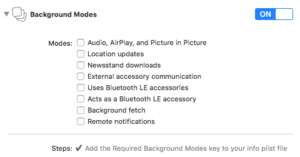
Before jumping into the code, let's get some of the stuff out of the way. You don't really have to do much in your project. All you have to do is enable the background modes, so go to the capabilities tab and enable it:
And that's it. We can code...
The Code
First off, you'll need to create a background URLSession. Your session will look similar to this one:// Download session
private lazy var bgSession: URLSession = {
let config = URLSessionConfiguration.background(withIdentifier: Constant.sessionID.rawValue)
//config.isDiscretionary = true
config.sessionSendsLaunchEvents = true
return URLSession(configuration: config, delegate: self, delegateQueue: nil)
}()
Your session identifier is a unique string, you can use your bundle ID for it, for example:
enum Constant: String {
    case sessionID = "agostini.tech.ATBGTransferDemo.bgSession"
}
In the code above, the property 'isDiscretionary' is commented out. If you set this property to true, you tell the system that you basically don't care when the file is downloaded. So the system will try to optimise the download as much as possible, e.g. downloading when you're connected to WiFi and charging the phone.
Set the 'sessionSendsLaunchEvents' to true to have your app woken up by the system when the download completes.
Notice how we set ourselves as a delegate when creating the session, we'll come to this later.
Start The Download
You have your background session, and you can use it to create your download tasks (and upload tasks as well). So let's create a download task and start the download:func startDownload() {
if let url = URL(string: "https://speed.hetzner.de/1GB.bin") {
let bgTask = bgSession.downloadTask(with: url)
bgTask.earliestBeginDate = Date().addingTimeInterval(2 * 60)
bgTask.countOfBytesClientExpectsToSend = 512
bgTask.countOfBytesClientExpectsToReceive = 1 * 1024 * 1024 * 1024 // 1GB
bgTask.resume()
}
}
In this function we're using some test files from a hosting provider 'Hetzner'. We create a url and use the session to create a download task. We need to set some properties, like expected send and received bytes (if you're dealing with a range, it's best to set the upper range). This will allow the system to optimise our download. We can also set the earliest date of the transfer. This only guarantees that the download won't start before that date. In our example, it can start 2 minutes from now, or 20 minutes from now.
And that's it, your file will begin downloading in the background.
Setting The Delegates
When your download finishes, your AppDelegate will get notified. You will be provided with a completion handler, you'll have to keep a reference to this completion handler. Your code will probably look identical to this one:var bgSessionCompletionHandler: (() -> Void)?
func application(_ application: UIApplication, handleEventsForBackgroundURLSession identifier: String, completionHandler: @escaping () -> Void) {
bgSessionCompletionHandler = completionHandler
}
You will use this completion handler from our controller. Speaking of which. Remember when we registered as a delegate of that URLSession. Well, when the download completes our delegate methods will get called next, you only need to implement one function:
// MARK: - URLSessionDelegate
extension BGTransferController: URLSessionDelegate
{
    func urlSessionDidFinishEvents(forBackgroundURLSession session: URLSession) {
        DispatchQueue.main.async {
            guard
                let appDelegate = UIApplication.shared.delegate as? AppDelegate,
                let completionHandler = appDelegate.bgSessionCompletionHandler
                else {
                    return
            }
            appDelegate.bgSessionCompletionHandler = nil
            completionHandler()
        }
    }
}
Here we're capturing the completion handler, nilling out the one in AppDelegate, and calling the original handler to notify the system that the download has been handled.
We also implemented the session download delegate, in order to get the location of the temp file and the download progress:
// MARK: - URLSessionDownloadDelegate
extension BGTransferController: URLSessionDownloadDelegate
{
    func urlSession(_ session: URLSession, downloadTask: URLSessionDownloadTask, didFinishDownloadingTo location: URL) {
        print("Did finish downloading: \(location.absoluteString)")
        DispatchQueue.main.async {
            self.onCompleted?(location)
        }
    }

    func urlSession(_ session: URLSession, downloadTask: URLSessionDownloadTask, didWriteData bytesWritten: Int64, totalBytesWritten: Int64, totalBytesExpectedToWrite: Int64) {
        guard totalBytesExpectedToWrite != NSURLSessionTransferSizeUnknown else {
            return
        }

        let progress = Double(Double(totalBytesWritten)/Double(totalBytesExpectedToWrite))
        print("Download progress: \(progress)")
        DispatchQueue.main.async {
            self.onProgress?(progress)
        }
    }
}
The demo app will have a simple progress indicator and a button. When the download completes, it will update the label with the temp file location:
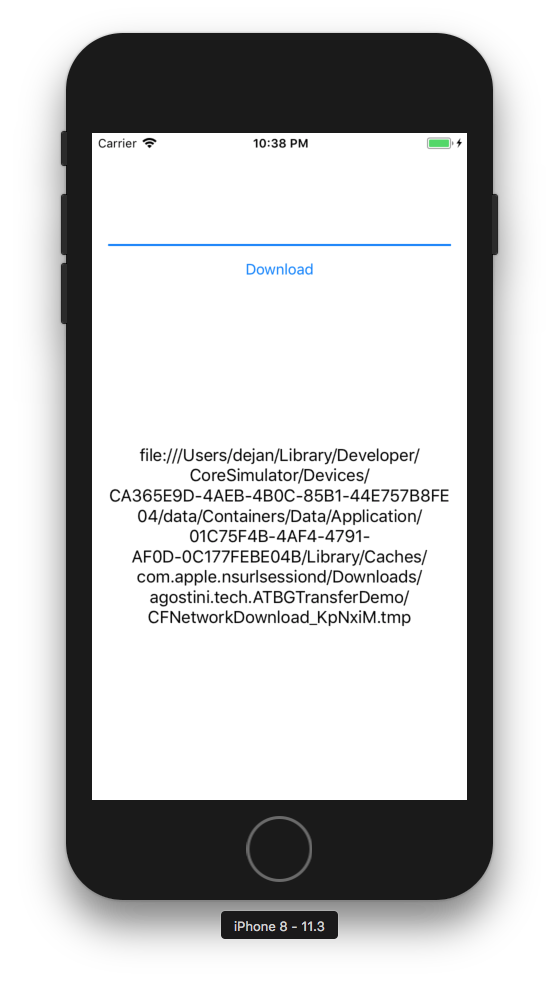 As you can see, the UI is quite complex :) And that's it. We have our files downloading in the background.
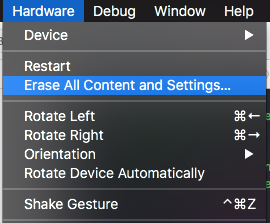
 Yes, I filled up my mac with garbage :) It might happen to you as well. All you have to do is reset your simulator to reclaim the wasted space:
As you can see, the UI is quite complex :) And that's it. We have our files downloading in the background.
Cleanup
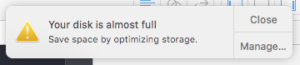
If you're playing with background transfers and have a fast internet connection like me, you'll probably be using large files. I was using a 10GB file. And in the process of build-run-debug, rinse and repeat, you'll be greeted with a funny message from your mac:
Yes, I filled up my mac with garbage :) It might happen to you as well. All you have to do is reset your simulator to reclaim the wasted space: