Using NSUserActivity for Spotlight Search
Dejan Agostini

Spotlight Search is a great feature that adds to the user experience. It's very simple to use and with just a little effort you will add a great functionality to your apps. In this short tutorial we'll be using NSUserActivity for spotlight search to index previously viewed content so it would display in the spotlight search results.
 We'll use this value when creating the NSUserActivity.
The App
In this post we'll use the app that's reading a feed from this blog. It's a simple app that's displaying a list of articles in a table. You can select an article and read the details. Nothing fancy, really. What we'll do is, every time a user opens an article, we'll create a NSUserActivity object so Spotlight Search can index it. So when the user searches their phone for keywords from the article, the article would pop up in the spotlight search results.Project Prep
There's not much you have to do to prepare your project. You only need to add an item into your Info.plist file:
We'll use this value when creating the NSUserActivity.
Creating The Activity
We'll be creating the NSUserActivity every time a user opens the details view controller. So, in the details view controller we'll need to import the CoreSpotlight and CoreServices:import CoreSpotlight
import CoreServices
For the user activity we'll create a private property using the identifier that we've stored in the Info.plist. And we'll invalidate the activity when the class is deinitialized:
private let myUserActivity: NSUserActivity = NSUserActivity(activityType: "tech.agostini.agostini-tech.postDetails")

deinit {
    myUserActivity.invalidate()
}
In the 'viewDidLoad' we'll call our function that will create the user activity:
private func setupUserActivity()
{
    myUserActivity.title = selectedPost?.title

    let keywords = selectedPost?.title.components(separatedBy: " ").filter { $0.count > 2 } ?? []
    myUserActivity.keywords = Set(keywords)

    myUserActivity.userInfo = [ActivityID.postID.rawValue: selectedPost?.postID ?? -1]
    myUserActivity.isEligibleForSearch = true
    myUserActivity.isEligibleForPrediction = true
    myUserActivity.isEligibleForHandoff = true

    // CoreSpotlight
    let attributeSet = CSSearchableItemAttributeSet(itemContentType: kUTTypeCompositeContent as String)
    attributeSet.title = selectedPost?.title
    attributeSet.contentDescription = selectedPost?.excerpt
    attributeSet.keywords = keywords

    if let post = self.selectedPost,
        let cachedImage = self.getPostDetails.cachedImage(forPost: post) {
        attributeSet.thumbnailData = UIImageJPEGRepresentation(cachedImage, 0.8)
    }

    myUserActivity.contentAttributeSet = attributeSet

    self.userActivity = myUserActivity
    self.userActivity?.becomeCurrent()
}
First we set a couple of obvious properties (title and keywords). UserInfo dictionary is something that we'll use later. The next three boolean properties are important. 'isEligibleForSearch' will add the activity to the spotlight index, so it can be searched, 'isEligibleForPrediction' will allow Siri to suggest this activity, 'isEligibleForHandoff' is some free magic that will let you continue your activity on another device that has your app installed.
This alone would be enough to add your user activity to the index and show it in the spotlight search results. But it would look pretty ugly. We can pretty it up by using CoreSpotlight attributes. These attributes are just to help CoreSpotlight index our activity better and to better control the look of the results. Mainly we'll set the thumbnail.
Now, if we build and run the project, and open a few articles, then if we search for one of the articles using spotlight this is what we'll get:
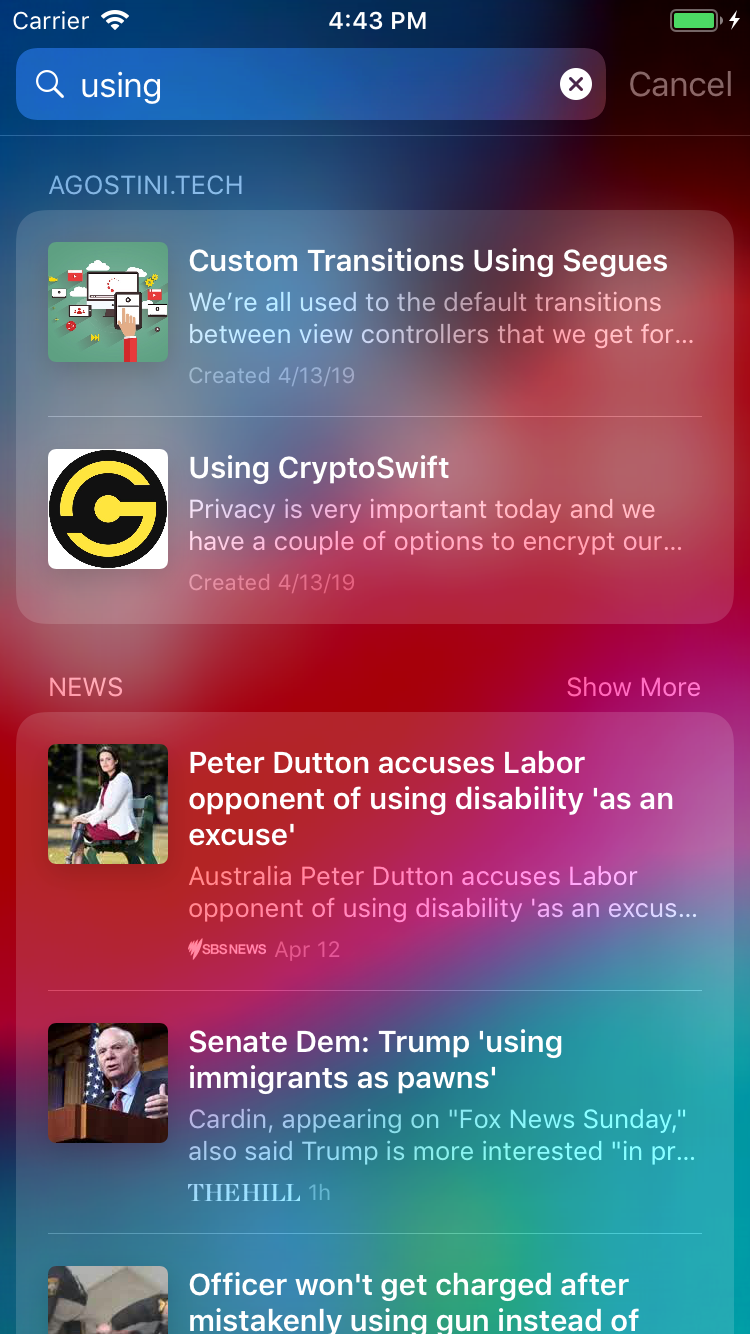 That was pretty easy, right :)
That was pretty easy, right :)
Using The Activity
If the user taps on the activity your app will open. But we want the user to be taken to the article they tapped. That's pretty simple to do. In the AppDelegate implement a function:func application(_ application: UIApplication, continue userActivity: NSUserActivity, restorationHandler: @escaping ([Any]?) -> Void) -> Bool {
if let postsVC = getPostsVC(),
let postID = userActivity.userInfo?[ActivityID.postID.rawValue] as? Int {
postsVC.showPost(withID: postID)
return true
}
return false
}
We can get our post ID from the user info dictionary that we set earlier. And based on your app, you can display the details view controller.
Now we have a seamless user experience. They can use your app, switch over to some other app, search for something they read about in your app, and open your app from the spotlight search results... Pretty cool, right :)