Type-safe Resources With SwiftGen
Dejan Agostini

There's a great little library that will generate classes for accessing your resources, making them type-safe. It's very simple to use and it will make your life a lot easier. In this article we'll learn how to make type-safe resources with SwiftGen.
Installation
Like most of these libraries, there are many ways of installing SwiftGen. You can install it system-wide (homebrew, mint) or in your project directory (cocoapods). System-wide installation is easier to use and easier to keep up to date. If you install it in your project directory you can control exactly which version of the library you want running in which project. It's up to you to decide which option works best for you. In this article we'll go with the system-wide installation. We'll use homebrew to install the library:brew update
brew install swiftgen
Now that we have the library installed, we'll add a new script run phase in our project. So that we can generate (and regenerate) our files every time we build the project:
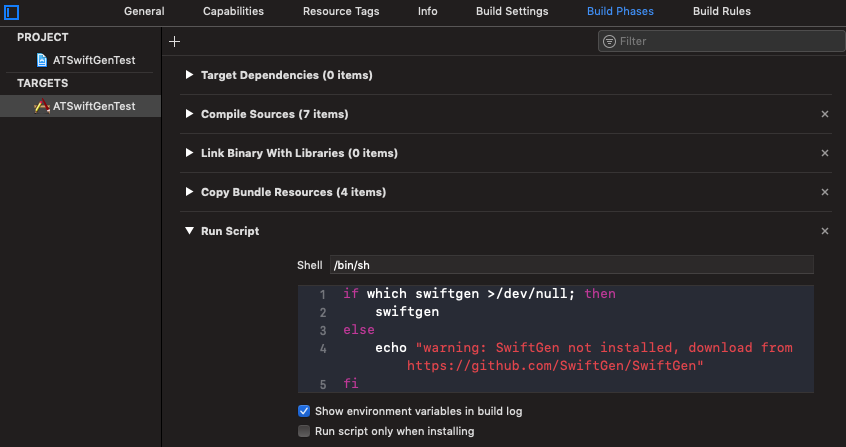 Add this as the script:
Add this as the script:
if which swiftgen >/dev/null; then
    swiftgen
else
    echo "warning: SwiftGen not installed, download from https://github.com/SwiftGen/SwiftGen"
fi
You can find the original script with the instructions on the official SwiftGen documentation page.
One last thing left to do is to create a configuration file. In the root of your project directory create a file named 'swiftgen.yml'. It doesn't have to be a hidden file. Now we're ready to generate some classes.
The way SwiftGen works is by using templates. You add the subcommands you want to use to your 'swiftgen.yml' file and specify the input, output and a template. You can see a list of templates in their GitHub repo. Let's check out some of these subcommands.
Strings
If you want to use the strings subcommand you might update your .yml file like this:strings:
inputs: ATSwiftGenTest/en.lproj/Localizable.strings
outputs:
templateName: structured-swift4
output: ATSwiftGenTest/Generated/Strings.swift
Make sure you have some strings in your .strings file:
"main.title" = "Just a main title";

"details.title" = "My details VC";
"details.description" = "Details VC description";
"details.message" = "Little %@ had %ld little bunnies.";
If you're saving your generated files in a folder, just make sure the folder exists before building from Xcode. Now, if you build the project, you'll have to manually add the generated file to your project. You'll only have to do it once, of course :)
Here's how you would use it:
// Localizable
let message = L10n.Details.message("Mary", 5)
Since we were using the dot notation in our .strings file, SwiftGen created an enum to group our strings. And check out the usage of the parameterised string, how cool is that :)
Assets
Let's see how we can generate some constants out of our assets catalog:xcassets:
inputs: ATSwiftGenTest/Assets.xcassets
outputs:
templateName: swift4
output: ATSwiftGenTest/Generated/Assets.swift
Every Image in your assets catalog will now be accessible as a constant:
// Asset
let bunny = Asset.notABunny.image
Now, if you accidentally rename your asset, the project won't compile, how cool is that :D
Interface Builder
This subcommand will create constants for your scenes and segues by using the storyboard identifiers.ib:
inputs: ATSwiftGenTest
outputs:
- templateName: scenes-swift4
output: ATSwiftGenTest/Generated/Scenes.swift
- templateName: segues-swift4
output: ATSwiftGenTest/Generated/Segues.swift
Here's a quick example how you would use it:
// Storyboard VC
let detailsVC = StoryboardScene.Main.detailsViewController.instantiate()

// Storyboard Segue
perform(segue: StoryboardSegue.Main.showDetailSegue)
Let's check one more useful subcommand...
Colors
This is a cool one. This subcommand will parse a file (text, json, xml or clr) extract colors from it and crate constants from them.colors:
inputs: colors.txt
outputs:
templateName: swift4
output: ATSwiftGenTest/Generated/Colors.swift
In the root of the project we have this file:
ATRed : 0xbababa
NotRed : #ababab
And here's how we can use it in code:
// Colors
let red = ColorName.atRed.color
let notRed = ColorName.notRed.color
How cool is that :)